Topics Explained: How Pinport Sorts Your Bookmarks for You
Above your bookmarks in Pinport sits a row of topics: a handful of groups, each named after what is inside. Pick one and the list narrows to it, then splits into finer topics. You never create, file, or tidy them.
This article explains what topics do, where they come from, and how they combine with search and tags.
Narrowing, one pick at a time
Picking a topic does two things. The list shows only that topic's bookmarks, and Pinport splits what is left into finer topics. Keep picking until the list is short enough to scan.
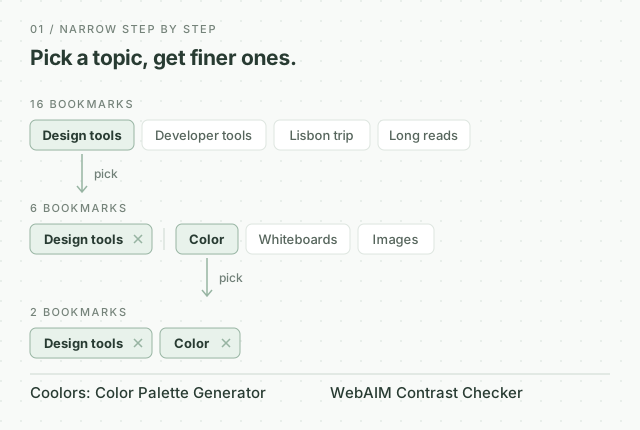
Picked topics stay at the start of the row. Remove one with its × to step back to that level, choose Clear to start over, or press Escape to remove the last one. Show all, next to the bookmark count, clears topics, search and tags at once.
Topics appear once a list has at least 12 bookmarks. A shorter list is quicker to scan than to split.
Where topics come from
Topics come from what your bookmarks are about, in three steps.
- Subject. An AI model reads the title, web address and note of each bookmark and notes its subject in a few words: coffee, Japan travel, web development. It knows most sites, so a bookmark titled only “Strava” counts as running. A bookmark you save gets its subject within a minute or two; an import within a few minutes.
- Group. For the list you are looking at, the model sorts the subjects into groups that belong together, such as coffee with cooking or running with cycling: three groups for a short list, up to six for a long one. A group needs at least two bookmarks.
- Name. Each group gets a short name that covers its subjects, in the language most of your titles are written in.
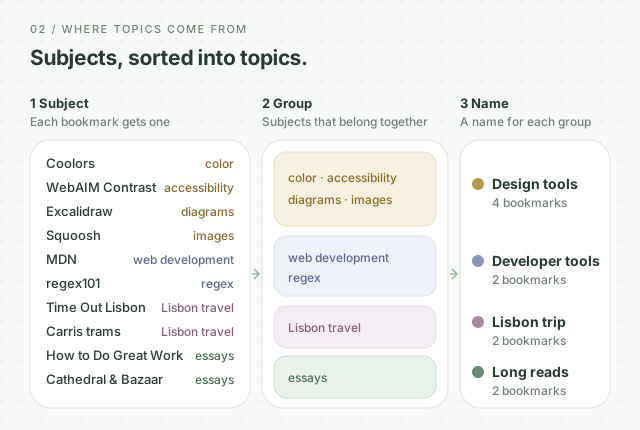
Three things follow from how topics are made:
- The same bookmarks give the same groups. Reload the page or come back tomorrow, and a topic you picked still holds the same bookmarks.
- Topics follow your library. A new bookmark joins the topic of its subject. Once your library has changed enough, its topics are formed anew, and their names can change with them.
- Topics are a view, not storage. Picking one never moves, copies or changes a bookmark.
Why subjects, and not simply bookmarks that look alike? Because bookmarks of the same kind look alike whatever they are about: a dozen encyclopedia articles on ramen, black holes and tiling would end up in one group. A subject ignores the kind of page. A bookmark whose subject is rare in your library joins the group it is most similar to, on the map of meaning described in Vector Search Explained.
Topics with search and tags
Topics combine with search and tags in any order. Each step narrows what came before it.
- Search first, and the topics come from your results. Search for "video", and the topics split the results into groups such as editing tools, tutorials and talks.
- Pick a topic first, and a search looks only inside it. Search for "regex" in Developer tools, and bookmarks elsewhere in your library stay out.
- Tags work the same way: a tag added after a topic narrows within it, and a topic picked after a tag splits only the tagged bookmarks.
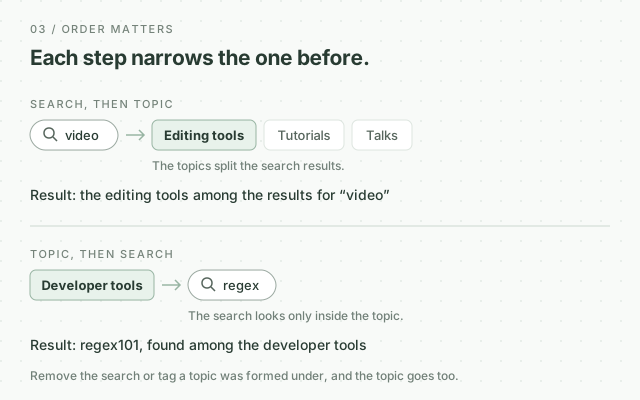
Remove a search or tag that a topic was formed under, and that topic goes too: it was never a topic of the larger list. Every step is part of the address in your browser, so you can reload a view or bookmark one you return to.
Topics or tags?
Topics say what a bookmark is about. They cannot know why you saved it. That is what tags are for: the project a link belongs to, the trip you are planning, what you mean to read later.
| Topics | Tags | |
|---|---|---|
| Made by | Pinport, automatically | You |
| Based on | What the bookmark is about | What it means to you |
| Change when | Your library changes | You change them |
| Good for | Browsing what you have | Projects, plans, to-dos |
They work well together. A "Japan 2027" tag holds the trip you are planning; a Japan topic also gathers the Japan bookmarks you never tagged.
Where it falls short
- Subjects are the model's reading. A misleading title, or a site the model does not know, can give a bookmark the wrong subject and put it in the wrong topic. A short note helps.
- Names are the model's choice. A name can be broader or blander than the one you would pick, and topics cannot be renamed. If a group matters to you, give it a tag.
- Sorting and naming have a monthly allowance per plan. Past it, topics are formed from how alike the bookmarks are and named after their most common tag or a title, until the next month.
Where you can use topics
Topics are in the web app and the browser extension, on every plan. Developers can request them through the API. The guide Browse by topic covers the controls.
Import your bookmarks from any browser. Topics appear within a few minutes, with nothing to set up.